



An example of creating an application for JD Edwards is the request I get most often from developers moving into the JDE ecosystem from other ERPs or from general software development. The JDE answer to "build a CRUD screen" is not what they expect, because the path is not "open the IDE and start coding". The path is a specific sequence through Object Management Workbench, Form Design Aid, business view binding, and event rule attachment, and skipping any step produces a form that technically compiles but does not behave like a real JDE application. The exercise below walks through that sequence end to end, building a custom inquiry application against a custom F55 table — the simplest realistic case, the one every developer needs to do cleanly before moving to anything more complex.
The scenario is concrete: the business has a custom table F5500120 holding service request records, and they need an internal application to list them, filter by status and customer, and drill into the detail view for a single record. The standard JDE pattern for this is a Find/Browse form pointing to a Fix/Inspect form, both bound to a custom business view, with event rules connecting them and a couple of BSFN calls for derived data.
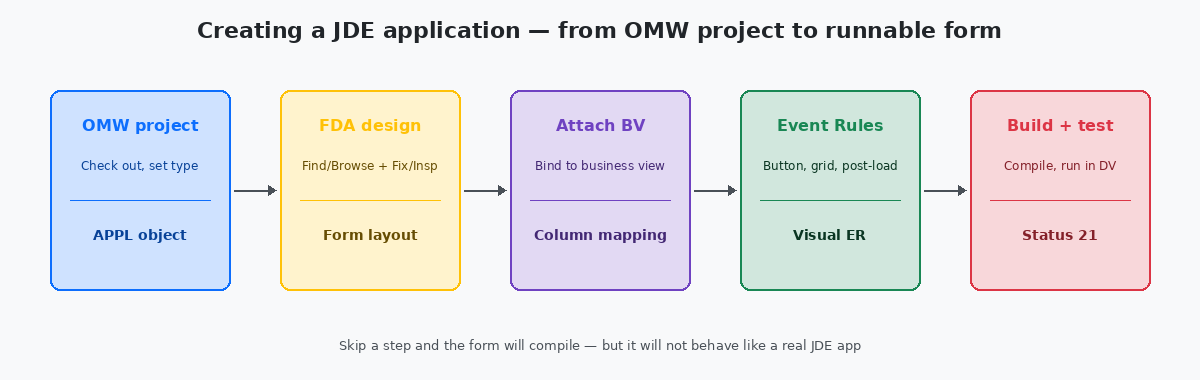
Step one: the OMW project and the application object
Every JDE development action starts in OMWObject Management Workbench — the JDE tool that manages object check-in, check-out, project membership, and status transitions across DV, PY and PD path codes.. A new project gets created with a meaningful name — the convention I use is "P5500120 service request inquiry" so anyone reviewing the OMW queue can tell what the project contains without opening it. The project gets assigned to the developer's user ID, and the type is set to ENH (enhancement) or NEW depending on whether the shop has standardised on a workflow.
Inside the project, the first new object is the application itself. From the Add button, the type is APPL, the name follows the customer's naming convention — typically P55* for custom applications in the reserved 55 namespace, so P5500120 in this case. The system prompts for a product code (55 for custom), a product system code (also typically 55), and a description that will appear in the Fast Path search and in menu searches. These fields look optional and are not — a custom application with no description is invisible to anyone navigating by search, which is how 90% of users actually find applications.
The application object is now empty in OMW with no spec content. The developer checks it out, which copies a blank application template into the local development environment and locks the object for editing by other developers. At this point the row in F9860 exists, the spec is empty, and the application is ready to be designed in FDAForm Design Aid — the JDE visual designer used to lay out forms, attach business views, define grid columns, and write event rules. Launched from OMW by double-clicking a checked-out APPL object..
The double-click on the checked-out application opens FDA. The screen that appears is empty except for a navigation tree on the left — no forms yet, just the application shell. The next decision is which forms the application will contain, and that decision is what shapes everything downstream.
Step two: choosing the form types and laying out the first form
The standard inquiry pattern uses two forms: a Find/Browse as the entry point and a Fix/Inspect for the detail view. The Find/Browse appears first when the user runs the application; it has a grid of records, a filter row above the grid, and buttons that navigate to the Fix/Inspect for the selected row. The Fix/Inspect appears when the user picks a row; it shows the header data, an optional grid for related lines, and Save/Cancel buttons.
In FDA, the Find/Browse is added through the Form menu, with the type set to Find/Browse. The system creates the form skeleton with a default filter row (FI), a grid row (GC), and standard buttons (Find, Close, Select, Add, Copy, Delete). The developer renames the form to something useful — W5500120A is the convention, where A is the suffix for the entry form. The form caption is set to "Work With Service Requests" and the system caption follows the same pattern across the application.
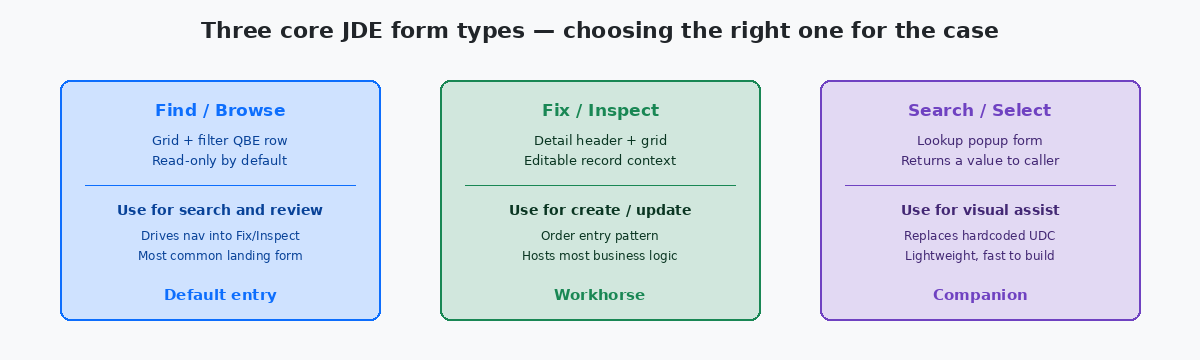
The Fix/Inspect form is added next, also through the Form menu, with the type set to Fix/Inspect. The naming convention W5500120B marks it as the secondary form, with the caption "Service Request Detail". At this point the application has two empty forms — neither is bound to any data — and the navigation tree shows both. The next step is binding them to a business view, which is what turns the empty forms into something that displays real records.
Step three: binding the form to a business view
A JDE form does not read tables directly. It reads a business viewA JDE metadata object that selects columns from one or more tables, defines joins between them, and exposes the result as a single rectangular dataset that forms, applications and UBEs bind to., which is itself bound to one or more tables. The business view is what determines which columns the form can display, which columns it can filter on, and how multi-table joins are handled. Building or selecting the right business view is the part of the exercise that catches new JDE developers off guard, because the concept does not exist with the same prominence in other ERPs.
For the service request inquiry, the business view is V5500120 — a custom view that selects columns from F5500120 (the service request master) and joins to F0101 to pull the customer name through AN8. The view is created as a separate OMW object before the form can bind to it, which means a parallel OMW activity: check out V5500120 if it exists, or create it from scratch through the Business View design tool.
Once the business view exists, the Find/Browse form is bound to it through the Form menu's Form Properties dialog. The dropdown lists every available business view; selecting V5500120 makes the form's grid and filter row aware of every column the view exposes. The grid is now ready to receive columns — but it does not have any yet, because the columns have to be added explicitly. This is the second moment where new developers stall, because in other frameworks the grid would auto-populate with every column from the bound source.
Columns get added to the grid by dragging them from the column list (which shows everything V5500120 exposes) into the grid layout. For the service request inquiry, the natural columns are DOCO (document number), MCU (business unit), AN8 (customer number), the joined customer name from F0101, the request type, the status code, and the request date. Each column gets a header text, a display width, and a visibility flag — and each column inherits its data dictionary properties automatically, which means the format, alignment and edit rules come for free.
Step four: event rules and the BSFN calls that make the form behave
A form bound to a business view will display data but will not respond to anything the user does. The Find button will fire its default behaviour, but custom logic — populating derived columns, validating filter values, calling a BSFN to compute a status colour — lives in event rulesJDE's visual scripting language attached to forms, applications, BSFNs and UBEs. Event rules encode business logic without writing C code and are the standard way to extend application behaviour.. Each control on the form (the Find button, the grid, the form itself) has a set of events it can react to, and each event opens an event rule editor where the developer attaches logic.
For the service request inquiry, three event rule attachments cover the common pattern. The first is on Grid Row Is Exited (the event that fires after a row is loaded into the grid): a small block of event rules computes the "days open" derived column from the request date and the system date, and writes the result into a non-database grid column. This is the canonical place to put display-only derived data — anywhere else and the data shows stale or duplicates the work across navigation paths.
The second attachment is on Button Clicked for a custom button added to the toolbar, "Mark Resolved". The event rule calls a custom BSFN — B5500120 — passing the selected DOCO, and on successful return refreshes the grid row through the standard refresh BSFN. This pattern is how the application invokes server-side business logic without the developer writing a single line of C code; the BSFN is built separately in NER or C, but from the application's perspective it is a single named call with a data structure input.
The third attachment is on Row Is Selected, firing the navigation to the Fix/Inspect form. Event rules use the Form Interconnections facility to pass the selected DOCO to W5500120B, which receives it through its own input data structure and uses it to query the detail row. Form interconnections are the JDE way of passing context between forms, and getting them right is essential — a Fix/Inspect that opens without knowing which record to display is a Fix/Inspect that shows the first row in the table, which is almost never what the user wanted.
Step five: building, testing, and the OMW status transition
With forms designed, business view bound and event rules attached, the application is ready to build. FDA's Build menu compiles the application against the local DV environment, generating the runtime artefacts that JDE needs to display the form. A clean build produces zero errors and zero warnings; warnings should be treated as errors in custom code, because most of them are pointing at real problems (missing data dictionary aliases, unresolved BSFN references, deprecated event rule constructs).
The first run happens from within OMW or from the Fast Path command in DV. The application launches, the Find/Browse form appears, and the developer tests the basic paths: clicking Find returns rows from F5500120 via V5500120; filter values restrict the grid correctly; the derived "days open" column populates; the Mark Resolved button calls the BSFN and refreshes; double-clicking a row opens the Fix/Inspect with the correct DOCO. Each path that does not work goes back into FDA for a fix; the iteration is fast in DV because there is no environment promotion involved.
Once the application behaves correctly in DV, the OMW status changes to 25 (peer review ready), and the application enters the standard promotion path: peer review, promote to PY, functional testing in PY, sign-off, promote to PD, smoke test in PD. The development side of the exercise ends here; the promotion side is its own discipline and follows the standard checklist that applies to every custom object.
For more on the next steps after a custom application is built, the related articles on JDE object promotion checklists, on BSFN testing harnesses, and on custom order entry validation cover what happens between DV and a clean production rollout. The technical project portfolio on this site documents two custom application suites that started from the kind of skeleton built in this exercise.
