




Every CNCConfigurable Network Computing; the JD Edwards architecture and system administrator role managing infrastructure, environments, and deployments. has taken the panicked call: a developer checks in a modified APPLJD Edwards interactive application object, defining forms and user interface screens. or UBEUniversal Batch Engine; a report or batch processing program in JD Edwards EnterpriseOne., advances the OMWObject Management Workbench; the central JD Edwards change management and object lifecycle tool. project from status 21 to 26, the update package deploys without errors, yet validation in PYPrototype; the standard test environment in JD Edwards where changes are validated before production. reveals the change never arrived. In our experience, roughly three-quarters of these escalations are not corrupt specifications, but silent failures in the transfer chain linking Object Management Workbench activity rules, target Central ObjectsDatabase repository storing JD Edwards application specifications, event rules, and code definitions. data sources, and runtime deployment states.
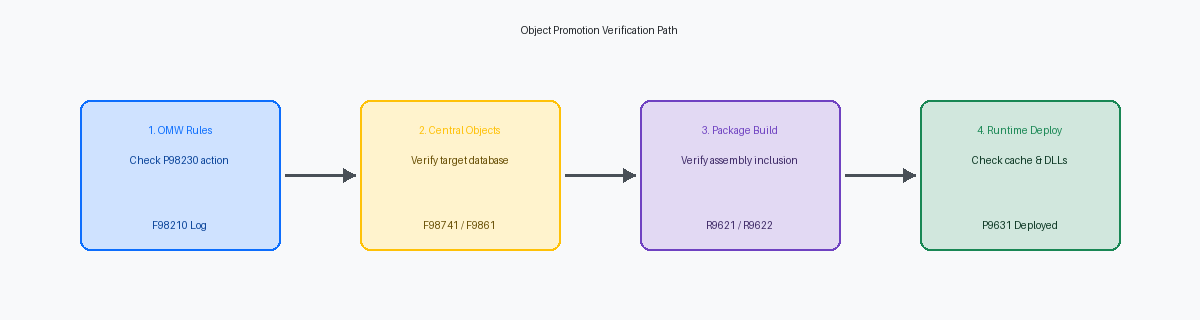
Disciplined JDE OMW troubleshooting for an object not promoted to a target environment demands a systematic isolation protocol rather than speculative token resets and repeated package builds. Before modifying project statuses or forcing another check-in, you must trace the artifact through F98210 history logs, verify physical row commits in Central Objects tables like F98741 or F98762, and inspect the package assembly records. Pinpoint the exact handoff where the pipeline failed before touching the environment.
Verify the Project Status Transition and Activity Rules
A project moving from status 21 to 26 in OMW without throwing a hard client error does not guarantee the underlying specs moved an inch. Your first query belongs in the F98210 log table, filtering by the project ID and sorting by the log sequence (LGSQ) descending. Look for action code 01 (status change) followed by the individual object transfer logs. If the project status updated in F98200 but F98210 records show an error return code—or omit the object transfer entries entirely—the process hit a silent rollback on the object payload while committing the parent status transition.
When F98210 shows no attempt to move the specs, open Object Management Configuration (P98230) and audit the exact from-status and to-status matrix. Teams frequently define status rules that change the project state but omit the corresponding object transfer activity rule for specific object types, particularly newer UDOUser Defined Object; web-based personalizations such as orchestrations, form extensions, and grid formats. types or NERsNamed Event Rules; business functions written in JD Edwards event rule language instead of C. versus standard APPLs and UBEs. If status 21 to 26 lacks an explicit rule row mapping that object type from your source path codeA pointer to a specific set of central object specifications and business function binaries. to the target, OMW skips the copy operation entirely, stamps the project as promoted, and leaves the target data source untouched.
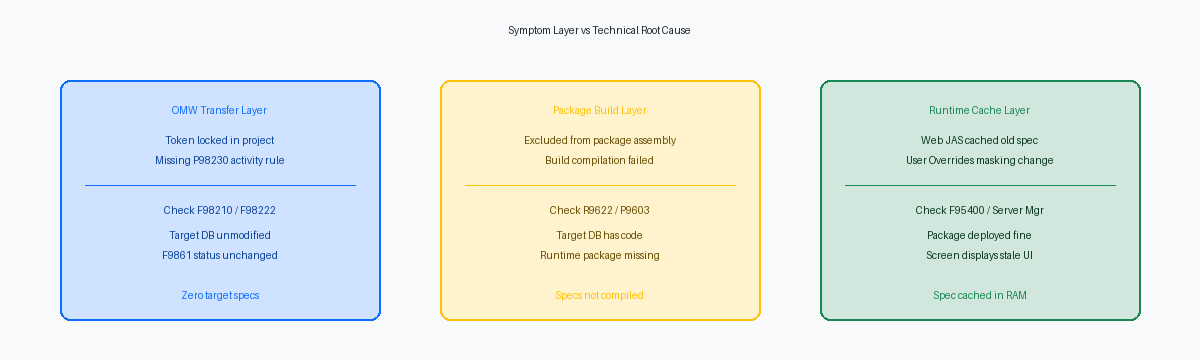
Token contentionLocking conflict occurring when multiple projects or developers attempt to check out and modify the same object. creates the exact same symptom. If another active project holds the primary token on your object, OMW blocks the physical spec copy to the target environment during project advance while permitting the status change to complete. Query the F98222 table to verify token ownership across all open projects before diagnosing network or package issues. Finally, verify the user account initiating the transition against P98220 role mappings. If the operator lacks the project role permission required to trigger transfer actions for that status pairing, OMW executes the status advance while bypassing the spec payload transfer.
Confirm Physical Transfer in Central Objects Data Sources
An OMW project status advance from 21 to 26 confirms only that the status activity rules executed without a fatal workflow error, not that relational records were committed to disk in your target database. When an object fails to appear in a target environment, teams often lose hours diagnosing package build logs when the failure occurred during the transfer step. Object LibrarianMaster catalog in JD Edwards tracking object names, descriptions, locations, and pathcode check-in statuses. records in F9860 and F9861 can register that an object now resides in the target pathcode, while the underlying specification tables remain stranded at an older baseline.
Validate physical delivery by running SQL directly against the target Central Objects schema—such as Central Objects - PY920. For interactive applications, query F98741 to inspect the event rules specifications; for business functions, check F98762, and correlate both against the pathcode entry in F9861:
SELECT SIOBNM, SIMUSER, SIUPMJ, SIUPMT FROM OL920.F9861 WHERE SIOBNM = 'P554210' AND SIPATHCD = 'PY920';
Compare the SIMUSER, SIUPMJ (Julian date), and SIUPMT (time) values against the source check-in audit stamps in DV920. If F9861 in the target environment shows the recent check-in timestamp but F98741 displays old dates or missing records, the spec copy aborted before completion.
This disconnect typically stems from two culprits: transient database connection drops during large object transfers or misconfigured Object Configuration ManagerJDE mapping engine directing client and server processes to the appropriate database tables or data sources. (OCM) mappings for central objects pathcodes. If the machine initiating the token transfer has an OCM mapping that points Central Objects - PY920 to an incorrect schema or fails under a database timeout, OMW can write the metadata to the System - 920 datasource while silently abandoning the binary spec insert.
Query these target tables before assembling and building your update packages. If the target spec timestamps do not match the developer’s check-in records, do not rebuild the package. Validate your server and client OCM mappings for the pathcode's Central Objects data source, confirm the database user has sufficient table space quota, and re-transfer the object specs directly.
Audit Package Build Definitions and Assembly Records
Central objects can show pristine, updated specifications in the database while the runtime engine continues to execute logic written months ago. An OMW project status advance commits code to Central Objects, but EnterpriseOne runtime kernels only execute what has been compiled, packaged, and deployed via an update or full package. If an object did not make the physical build definition, the runtime environment remains completely unaware that an OMW transfer ever occurred.
Open Package Assembly (P9603) and inspect the explicit object inclusion list for the package applied to the target path code. Verify whether the modification was bundled as an individual object or swept in via an OMW project name, and cross-reference the assembly timestamp against the object check-in date in F9861. A frequent root cause in rapid deployment cycles is a developer committing a critical fix minutes after CNC assembled and frozen the package definition. The package compiles cleanly and deploys without warning, but it captured the stale spec snapshot, stranding the intended revision in source control.
Query the Package Build History table (F9608) and inspect both the R9621 client log and R9622 server build report. Never trust an overall package status showing "Completed" in P9601; a package marked successful often conceals skipped specs or failed object links. If a modified BSFNBusiness Function; compiled C or Event Rule code executing business logic on the Enterprise Server. triggers a C compilation error or an unresolved external symbol during the DLL link phase, the build engine skips the object, logs the failure in the R9622 detail, and finalizes the remaining binaries. The deployment utility flags the run successful, yet the enterprise server continues executing the old runtime binary.
Inspect Runtime Deployment and Client Spec Synchronization
A green checkmark on an update package in P9631 does not guarantee runtime execution. Open Package Deployment (P9631) and verify that the target pathcode record shows an explicit 'Deployed' status across both the enterprise server and each designated HTML server instance. Teams frequently assume a successful push when the parent record shows complete, ignoring that an individual web engine or secondary logic tier failed during runtime synchronization due to a locked spec handle.
For C-based BSFNs, successful spec transfer means nothing if binary compilation failed quietly downstream. Log into the Enterprise Server and navigate to the runtime bin64 (or bin32) directory under the specific pathcode. Check the physical timestamp of the shared object—typically CALLBSFN.dll on Windows or libCALLBSFN.so on Linux or AIX—against your build completion log. Run dumpbin /exports or nm -D directly against the shared library to verify that your new function symbol actually exists in the exported symbol table.
Do not attempt to validate server-side spec synchronization from a fat clientA Windows development workstation running JD Edwards locally with local database specs and compilers.. Development workstations run against local specs, creating a false positive where an object appears operational locally while the server runtime is completely out of sync. Even when the disk binaries and Central Objects are aligned, active call object kernelsEnterprise Server background processes that execute business function logic requested by web clients. frequently cling to cached spec metadata in RAM. Terminate the active kernel processes or bounce the logic instance through Server Manager to clear out orphaned in-memory caches and force the engine to load the updated shared libraries.
Diagnose Serialization and AIS Cache Latency
More than a few frantic calls about missing code in PD920 resolve down to stale serialized objects sitting in WebLogic memory. In Tools Releases 9.2.x, the JASJava Application Server; the JD Edwards web runtime component running on WebLogic or WebSphere. engine aggressively caches serialized specifications to prevent database roundtrips. When a newly deployed update package touches an interactive application like P4210, active user sessions continue executing old runtime specs. Log into Server Manager, navigate to the target JAS or AISApplication Interface Services; REST API server providing integration endpoints and mobile backends for EnterpriseOne. instance, and execute a clear-cache operation targeting runtime data dictionary and application specs—or bounce the JVM instance during an off-peak maintenance window.
If Server Manager reports clean caches but a tester insists a new grid column or control did not deploy, inspect the F95400 table. User overridesUser-specific or role-specific personalizations saved in F95400 that alter grid columns, sequence, or form layouts. stored at the user, role, or *PUBLIC level supersede base application definitions in the web client, effectively cloaking your form design modifications. Query F95400 where UOFMNM matches the application and form ID. If an override record exists with a timestamp predating the package deployment, delete or revise that entry. Obsolete grid formats in F95400 account for a large share of false-positive promotion failures, often roughly a third to half of reported interface discrepancies.
Do not overlook the separation between core object specs and modern User Defined Objects. If the modification relies on an orchestration, form extension, or custom grid format, conventional OMW project status transitions do not deliver those web components to the runtime engine. Those assets require promotion through P98220U (UDO Administration) to be approved and published to *PUBLIC in the target environment. You can deploy pristine specs to the enterprise server, but unapproved UDOs will keep the user interface looking untouched.
Execute the Isolation Protocol Before Re-Promoting
When an object fails to materialize in the target environment, the worst reflex is cycling the project status from 28 back to 21 and forward again. Toggling statuses blind creates a fragmented F98210 project log, triggers phantom token disputes, and risks overwriting valid central specifications if concurrent maintenance is underway. You are effectively rolling dice with spec merges instead of diagnosing why the transfer failed.
Start by validating check-in integrity at status 26 or 28. Run an OMW Advanced Get to pull the target pathcode specifications into a clean development client, allowing you to run an explicit ER or spec comparison against the source DV specs. Query the target Central Objects data source directly—inspecting the UPMJ and UPMT timestamps in tables like F98741 for applications or F98761 for reports against the source dev environment. If the target records are entirely absent or show stale timestamps, the object transfer rule never triggered.
Do not re-promote the entire multi-object project. Define and build an isolated update package containing solely the missing object, and inspect the package build history and compilation logs before deploying to the enterprise server. Check both the client-side Build.log and the server-side svrpkg.log to confirm the runtime DLL or spec database received the object cleanly. Log the verified root cause in your deployment tracker—whether an unhandled save location, a duplicate token, or a missing transfer rule in P98230—to ensure the team eliminates systemic configuration defects rather than repeating manual promotion workarounds.
Systematically tracing F9861 and Central Objects table records cuts hours of circular debate between CNC administrators and development teams down to a targeted database query. When promotions stall, approaching the issue as a data and configuration audit rather than an excuse for speculative rebuilds protects environment integrity and ensures verified code runs in production.
